How to Create the Viral AI Bodyguard VIP Entrance Video from a Selfie in 2026: The Complete Guide to the Cinematic Security-Squad Walk Trend on TikTok
"Main character energy" — that phrase gets tossed around like confetti on TikTok, usually meaning someone walked into a coffee shop with sunglasses on. But 2026's biggest video trend took that vague aspiration and gave it a literal entourage. The AI bodyguard VIP entrance video — you upload a single selfie and AI generates a slow-motion cinematic clip of you striding through a lobby flanked by suited security — has racked up millions of posts across TikTok and Instagram. It's absurd. It's cinematic. And the reason it works is more interesting than you think.
This guide breaks down every major method for creating your own AI bodyguard video from a selfie, from one-tap CapCut templates to fully customized prompt-driven generators. We'll cover exact workflows, the prompts that actually produce good results, and why the best versions of this trend aren't the ones trying hardest to look real.
Why the AI Bodyguard Filter Dominates (And It's Not About Looking Rich)
Here's the contrarian take nobody's offering: the bodyguard AI effect on TikTok isn't popular because people want to look wealthy. Wealth aesthetics have been available through filters for years — gold chains, sports cars, penthouse balconies. Those trends fizzle in weeks.
The bodyguard trend persists because it visualizes social proof as physical architecture. You're not surrounded by objects. You're surrounded by people whose entire job is to signal that you matter. The camera is low-angle. The lighting is dramatic. Every compositional choice says the world is arranged around you.
That's main character energy made structural. Not vibes — geometry.
The best-performing versions lean into humor or surreal exaggeration rather than straight-faced luxury. A grandma flanked by seven agents. A cat getting the VIP treatment. A toddler in a diaper with a full security detail. The trend rewards self-awareness, which is exactly why it keeps spreading instead of dying the usual algorithmic death.
The Selfie That Makes or Breaks Your AI Bodyguard Video
Before you touch any tool, let's talk about the input. The entire AI bodyguard video generator pipeline depends on one photograph. The quality of that photograph determines everything downstream. The angle matters. The expression matters. The specific set of your jaw matters.
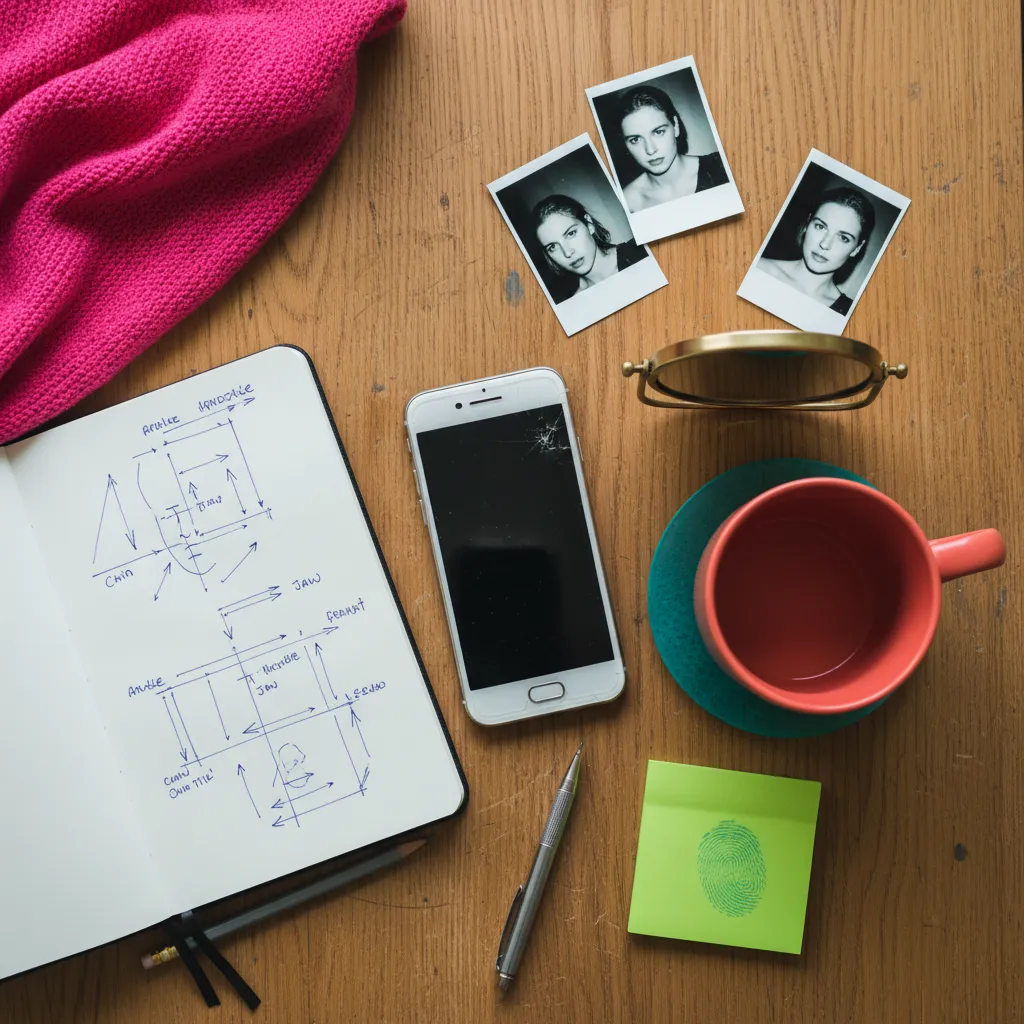
Here's what the AI needs from you:
- Straight-on or slight low angle. The generated video will place you walking forward. If your selfie is shot from above — the classic MySpace angle — the AI struggles to reconstruct a convincing forward stride.
- Neutral to confident expression. Smiles work for the comedic versions, but the classic cinematic bodyguard walk effect demands a straight face or slight smirk. Think press conference, not vacation.
- Clean background or solid color. Busy backgrounds confuse face-extraction algorithms. A plain wall, a solid door, even a cloudy sky — anything uniform helps the AI isolate you cleanly.
- Good lighting on the face. Front-lit or slightly side-lit. Harsh overhead shadows create artifacts in the generated video that no amount of editing fixes.
At PixViva, we've seen this principle play out across every AI portrait trend: the selfie is the blueprint, and a sharper blueprint builds a sharper result. If you're already creating polished AI-enhanced portraits with tools like PixViva, you're ahead of the game — that same attention to input quality translates directly here.
Method 1: AI Bodyguard CapCut Template (Fastest Route)
CapCut templates are the drive-through window of this trend. You pull up, hand over your selfie, and receive a fully assembled video in under sixty seconds. No prompts. No settings. No decisions.
That simplicity is both the strength and the limitation.
Step-by-Step
- Open CapCut and tap Templates at the bottom navigation bar.
- Search "AI bodyguard" or "VIP entrance" — you'll see dozens of community-created templates, most with millions of uses already.
- Pick a template. The top-performing ones typically feature slow-motion walks, dramatic bass-heavy audio, and a dark cinematic color grade.
- Upload your selfie when prompted. CapCut's face-swap engine handles the rest.
- Preview, adjust timing if the template allows it, and export.
What You Can't Control
The bodyguard count, their appearance, the environment, the camera movement, the lighting mood — all locked by whoever built the template. You're casting yourself into someone else's movie. For many people, that's perfect. For anyone wanting a specific vibe — say, outdoor red-carpet energy instead of a hotel-lobby walk — you'll need a different method.
Pro Tip
Sort templates by newest rather than most popular. The freshest templates use updated AI models with better face integration, and they haven't been used by ten million people yet. Originality still counts on TikTok, even inside a trend.
Method 2: Media.io AI Video Generator (Best Balance of Control and Ease)
Media.io occupies the sweet spot. You get a text prompt field — actual creative control — without needing to understand diffusion models or frame interpolation. It's the method we'd recommend for most people chasing the AI bodyguard video from a selfie.
Step-by-Step
- Go to Media.io and navigate to their AI video or image-to-video tool.
- Upload your selfie.
- Enter a descriptive prompt. This is where the magic happens.
- Select video length (5–10 seconds is the sweet spot for TikTok), aspect ratio (9:16 for vertical), and generation quality.
- Generate, download, add your own audio in CapCut or any editor.
Prompts That Actually Work
Most tutorials give you a single generic prompt. Here are three variations tested for different vibes:
- Classic Boss Entrance: "Cinematic slow-motion video of [describe yourself] walking confidently through a luxury hotel lobby, flanked by four suited bodyguards in black, dramatic low-angle camera, golden lighting, shallow depth of field, 4K cinematic look"
- Comedic Exaggeration: "Slow-motion video of [describe yourself] walking through a grocery store with an absurdly large team of eight serious bodyguards in suits, overhead fluorescent lighting, mundane setting contrasting dramatic security presence"
- Red Carpet Fantasy: "Cinematic tracking shot of [describe yourself] walking down a red carpet at night, two bodyguards in dark suits slightly behind, camera flashes in the background, paparazzi silhouettes, shallow depth of field, dramatic atmosphere"
Notice the pattern: every effective prompt specifies the camera angle, the lighting, the environment, the number of bodyguards, and one textural detail ("shallow depth of field," "fluorescent lighting"). The AI needs those compositional instructions. Without them, you get a flat, forgettable result.
Method 3: Clipfly (Best for Iteration and Experimentation)
Clipfly's strength is speed of iteration. Generation times are short, the interface is minimal, and you can run multiple prompt variations quickly to find the version that hits.
Step-by-Step
- Visit Clipfly's image-to-video tool.
- Upload your selfie.
- Write your prompt (same prompt principles from the Media.io section apply).
- Generate, review, tweak the prompt, regenerate.
The key difference here is workflow philosophy. Clipfly is built for rapid cycles — generate three versions, pick the best one, refine the prompt, generate three more. If you're the type who wants to nail a very specific cinematic bodyguard walk effect, this iterative approach gets you there faster than any single-shot tool.
Method 4: Filmora AI Video (Best for Post-Production Polish)
Filmora enters the conversation from a different direction entirely. It's a video editor first, AI generator second. This means your AI bodyguard video gets access to Filmora's full suite of color grading, audio syncing, text overlays, and transition effects.
Step-by-Step
- Open Filmora and use the AI image-to-video feature to generate your base bodyguard clip from a selfie.
- Import the generated clip into the timeline.
- Apply cinematic color grading — the teal-and-orange look is practically synonymous with this trend.
- Sync a bass-heavy audio track. Timing the beat drop to your first visible step is the single edit that separates amateur posts from viral ones.
- Add slow-motion ramp effects if the generated clip doesn't already include them.
- Export in 9:16 at the highest quality your TikTok upload will preserve.
Filmora is the right choice when the generated video is 80% there and you want to push it to 100%. The raw AI output from any tool can look slightly artificial — Filmora's editing depth lets you massage it into something genuinely cinematic.
Customization Tips That Separate Viral from Forgettable
The trend has millions of posts. Millions. Standing out requires intention in places most people don't think to look.
Audio Selection
The audio track is half the video. A slow-motion bodyguard walk set to trending bass music performs predictably well, but the posts that actually break through often use unexpected audio — a classical orchestra piece, a comedic voiceover narrating the entrance, silence with only footstep sound effects. Contrast creates memorability.
The Three-Second Rule
TikTok's algorithm evaluates retention in the first three seconds. Your AI VIP entrance video should open mid-action — bodyguards already in frame, you already walking — not with a slow fade-in establishing shot. Drop the viewer into the moment. Context can come after the hook.
Humor Outperforms Sincerity
Data doesn't lie here. The bodyguard AI effect TikTok posts with the highest share rates are almost universally comedic. The mundane-setting-plus-dramatic-security formula — bodyguards at the dentist's office, bodyguards escorting you to your 9-to-5 cubicle — generates shares because it gives the viewer something to caption, something to relate to, something to riff on. Pure luxury fantasy gets likes. Comedy gets shares.
Pair It with a Great Profile Photo
Here's the connection most creators miss: the viral video drives traffic to your profile, and your profile picture is the first thing new visitors evaluate. If your AI bodyguard video looks cinematic and your profile photo looks like it was taken in a bathroom mirror, you've created a dissonance that costs you followers. Tools like PixViva exist precisely for this — creating AI-enhanced portraits that match the polished, confident energy your content projects.
The Bigger Picture: Why This Trend Matters Beyond TikTok
Pull back from the tutorials and prompts and templates for a second. The AI bodyguard filter trend is a milestone. Not because it's the best AI video effect — it isn't — but because it's the first mainstream trend where millions of people are casually generating cinematic video from a single photograph and treating the result as native content rather than a tech demo.
That shift is enormous. A year ago, AI-generated video was a curiosity. Now it's a content format. The tools will get better. The outputs will get more convincing. The prompts will get more nuanced. But the underlying creative instinct — I want to see myself in a story I've never lived — that's the permanent thing.
The bodyguard trend is just the current costume that instinct is wearing. Master the workflow now, and you're ready for whatever cinematic fantasy the algorithm serves up next.
Upload the selfie. Write the prompt. Walk the walk.
Ready to see yourself in a new light?