How to Preview Any Tattoo on Your Body from a Selfie with AI in 2026: The Complete Guide to Virtual Ink Try-On Before You Commit
I'll admit it: I have a tattoo I got at 22 that was supposed to be a phoenix rising from ashes but looks more like a rotisserie chicken escaping a campfire. Cost me $400 going in, and it'll cost me $3,000 in laser sessions going out. If AI tattoo try-on tools had existed back then — if I could have seen that design on my actual skin before the needle touched down — I'd still have $3,400 and a lot more dignity at pool parties.
You're smarter than 22-year-old me. That's why you're here.
Searches for AI tattoo generators grew 55% year-over-year heading into 2026, and the reason isn't complicated: people who are about to spend $200 to $2,000 on permanent body art want to see it first, on their body, in their skin tone, at their chosen placement, before a single drop of ink is deposited. A virtual tattoo preview from a selfie isn't a novelty anymore — it's the fitting room for the most permanent purchase you'll ever make.
This guide gives you everything: the tools, the prompts, the styles, and the workflow to try a tattoo before getting it.
Why a Virtual Tattoo Preview from a Selfie Changes Everything
Tattoo regret sits somewhere between "I shouldn't have texted my ex" and "I shouldn't have cosigned that loan" on the scale of reversible-but-painful mistakes. The American Society for Dermatologic Surgery reports that roughly 25% of tattooed Americans regret at least one piece, and laser removal is slow, expensive, and about as fun as it sounds — which is to say, not at all.
Here's what an AI tattoo placement preview actually solves:
- Scale surprises — That delicate wrist script you loved on Pinterest might look like a smudged receipt on your forearm. AI shows you exact proportions on your anatomy.
- Style mismatches — Watercolor tattoos photograph beautifully on porcelain skin; on deeper tones, the same design might need bolder linework. You see this before the appointment.
- Placement regret — An inner bicep piece that looks incredible relaxed might warp into abstract expressionism when you flex. AI lets you test positions.
- Artist communication — Walking into a shop with a hyper-realistic mockup on your actual body gives your tattoo artist a reference that eliminates guesswork.
The gap between "I love this design" and "I love this design on me" is exactly where a tattoo simulator selfie tool lives.
The Best AI Tools to See a Tattoo on Your Skin in 2026
Not every AI tattoo generator is created equal — some paste clip art onto your photo like a ransom note, while others blend ink into your skin with the precision of an actual tattoo artist working on a slow Tuesday. Here's the honest breakdown.
PixViva: The Hyper-Realistic Selfie-to-Tattoo Mockup
PixViva was built for photorealistic transformations from a single image, which makes it a natural fit for virtual tattoo previews. You upload a selfie, describe the tattoo you want — style, placement, size — and the AI generates the design directly onto your skin with accurate shading, skin-tone adaptation, and realistic wrap-around on curved body parts like shoulders and calves.
What makes it stand out: PixViva doesn't just overlay a tattoo. It integrates the ink into the photograph so the result looks like you already sat for the session, complete with how light falls on slightly raised fresh-ink texture. It's the difference between a sticker on a photo and a tattoo on a body.
Gemini AI (Google)
Google's Gemini image generation has gotten remarkably good at modifying existing photos with text prompts. It handles tattoo concepts well when you write specific, layered prompts (more on those below).
ChatGPT with Image Generation
OpenAI's image capabilities can generate tattoo designs and, with the right prompting, apply them to reference photos. It's strongest at concept exploration — generating five variations of a Japanese sleeve in sixty seconds — and weakest at precise body placement.
Copy-Paste Prompts for Every Major Tattoo Style
The prompt is where the magic lives or dies. A vague prompt gives you a vague result — like asking a tattoo artist to "just do something cool, man" and wondering why you ended up with a barbed-wire armband in 2026.
Below are field-tested prompts organized by tattoo style. Customize the bracketed sections for your specifics.
Fine Line Tattoo Prompts
PixViva prompt:
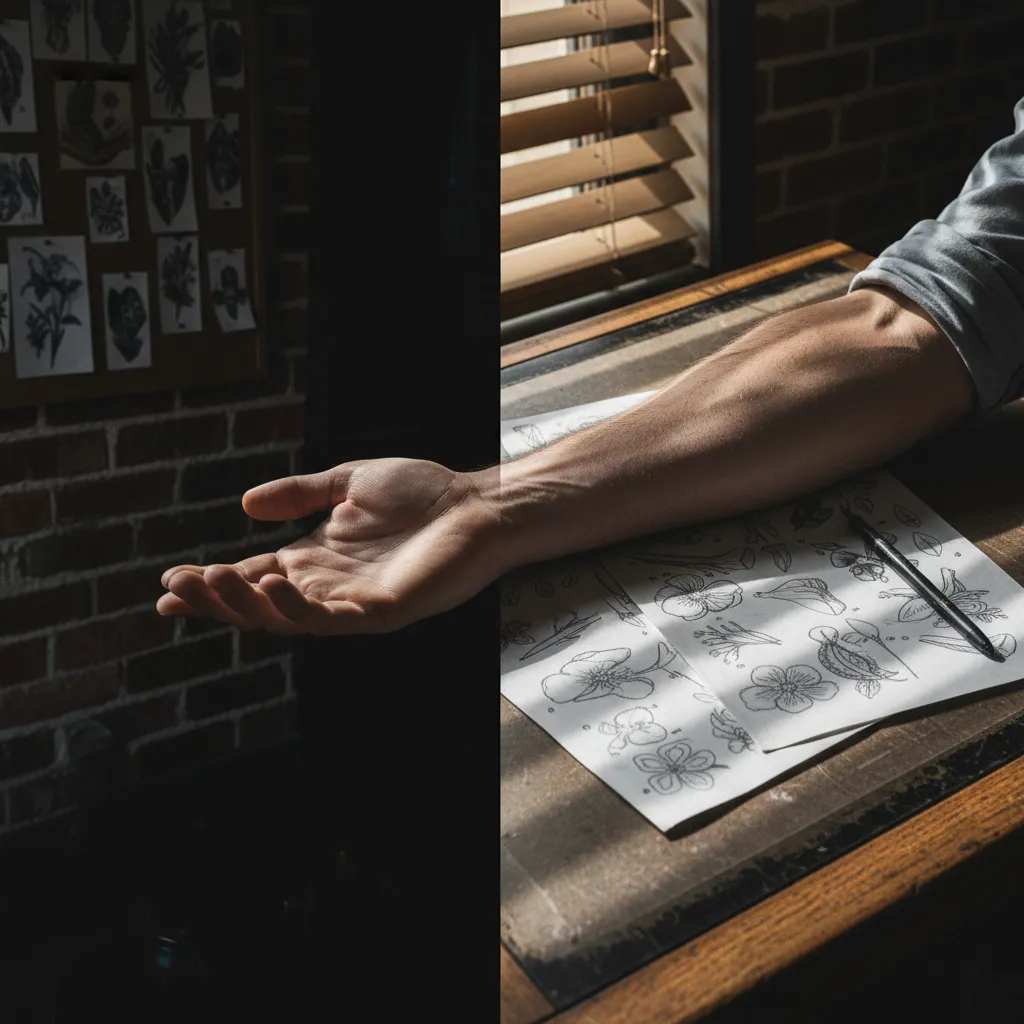
"Add a fine-line tattoo of [a botanical wildflower bouquet] on my [inner forearm]. Single-needle style, delicate thin black lines, no shading, no color fill. The tattoo should look healed and settled into the skin naturally. Keep the rest of the photo untouched."
Gemini AI tattoo prompt:
"Edit this photo to show a fine-line minimalist tattoo of [a crescent moon with geometric line extensions] on the [left wrist]. The tattoo should use hairline-thin black ink, appear realistic as if professionally done, and match the lighting and skin tone of the original image."
ChatGPT prompt:
"Generate an image of a [woman's inner forearm, light-medium skin tone] with a realistic fine-line tattoo of [a small constellation of Orion]. Single-needle aesthetic, no color, ultra-thin lines, photorealistic skin texture."
Watercolor Tattoo Prompts
PixViva prompt:
"Apply a watercolor-style tattoo of [a hummingbird mid-flight] on my [upper shoulder/deltoid]. Soft color bleeds in [teal, violet, and coral], no hard outlines, paint-splash edges that fade into the skin. Photorealistic result."
Gemini AI tattoo prompt:
"Modify this selfie to include a watercolor tattoo of [a compass rose] on the [right ribcage area]. Use soft gradients of [navy and gold], visible paint-drip effects, minimal black outlines. The tattoo must look like a real healed tattoo, not a digital overlay."
Traditional Japanese Sleeve Prompts
PixViva prompt:
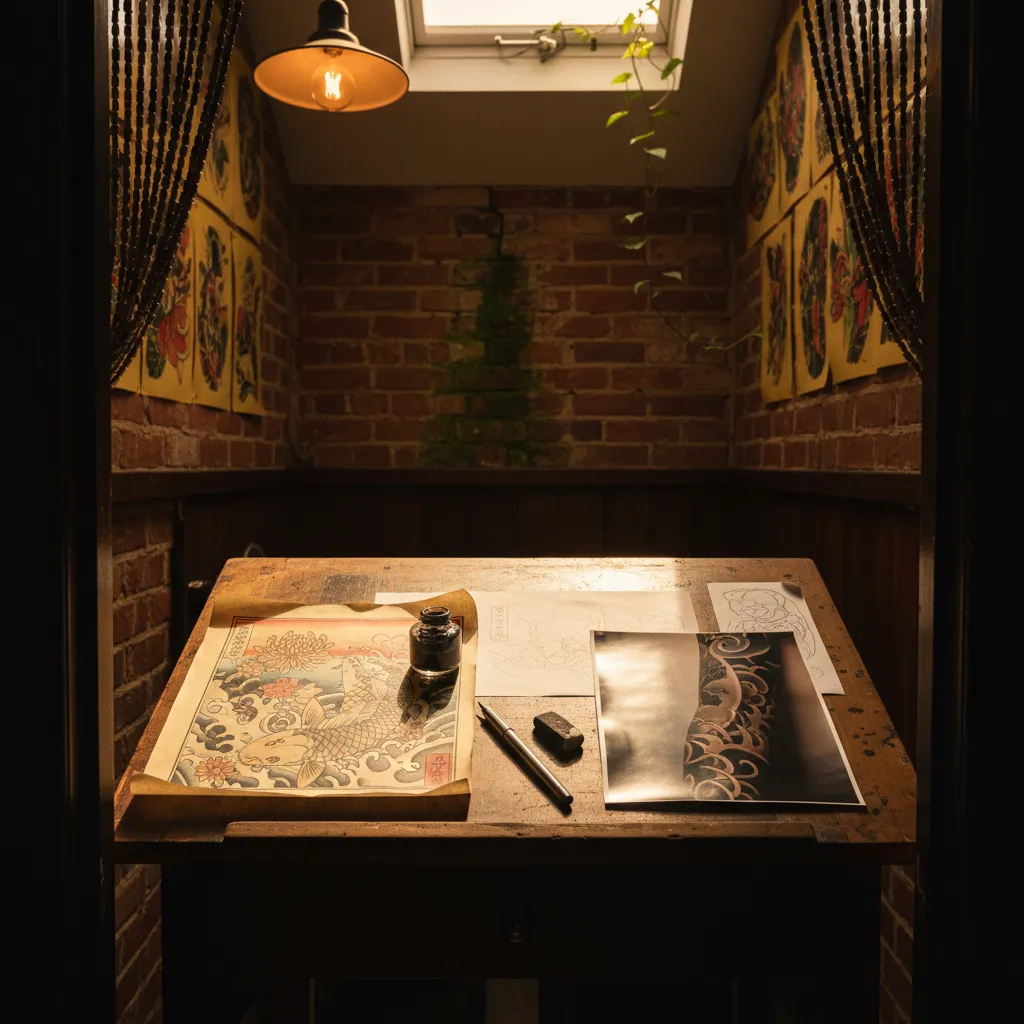
"Generate a full Japanese sleeve tattoo on my [left arm from shoulder to wrist]. Include [a koi fish swimming upstream, cherry blossom branches, and wave background]. Bold outlines, rich color saturation in [red, black, gold, and deep blue], traditional Irezumi style. The tattoo should wrap around the arm realistically."
ChatGPT prompt:
"Create a photorealistic image of a [man's left arm] with a full traditional Japanese sleeve tattoo featuring [a dragon coiling through cloud patterns with peony flowers]. Bold black outlines, flat color fills in [crimson, emerald, and gold], proper tebori shading style. Show the arm at a slight angle to display the wrap-around design."
Neo-Tribal and Blackwork Prompts
PixViva prompt:
"Add a modern neo-tribal blackwork tattoo on my [upper chest, collarbone to mid-pec area]. Bold solid-black geometric patterns with [Polynesian-inspired motifs], sharp symmetrical lines, negative space integrated into the design. Should look like saturated fresh black ink on my skin."
Gemini AI tattoo prompt:
"Edit this photo to add a blackwork tribal tattoo across the [right shoulder and upper arm]. Solid black fills, intricate geometric dot-work borders, Maori-inspired patterns. The result must be indistinguishable from a real photograph of a tattooed person."
Step-by-Step: Your First AI Tattoo Try-On with PixViva
Enough theory. Here's the actual workflow.
- Snap a clean selfie — Good lighting, minimal clothing over the target area, no heavy filters. Your AI tattoo placement preview is only as good as the source photo. Natural window light is your best friend; bathroom fluorescents are your nemesis.
- Choose your style reference — Browse tattoo portfolios on Instagram or Pinterest. Save 2-3 designs that capture the vibe, even if they're not exactly right. This informs your prompt language.
- Write your prompt — Use the templates above. Be absurdly specific: name the style, the elements, the placement, the colors, the line weight, the size. Specificity is the difference between "cool tattoo" and "my tattoo."
- Generate and iterate — Run the prompt, review the result, then refine. Maybe the koi fish needs to sit two inches lower. Maybe the linework should be thicker. Each iteration gets you closer to the version you'd actually commit to.
- Save and share with your artist — Download the final mockup. Bring it to your consultation. Watch your tattoo artist's face light up because you just handed them a crystal-clear brief instead of a rambling Pinterest board.
Pro Tips for More Realistic AI Tattoo Previews
After running hundreds of these through various tools, here's what separates the convincing mockups from the obvious fakes:
- Specify "healed" vs. "fresh" ink — Fresh tattoos are slightly raised with redness around the edges; healed tattoos sit flat and slightly faded. Most people want the healed look for a realistic preview.
- Match the lighting description to your photo — If your selfie has warm golden-hour light, mention it in the prompt. AI handles consistency better when you're explicit.
- Request skin-texture preservation — Add "maintain visible skin pores, freckles, and hair" to your prompt. This stops the AI from airbrushing your skin into plastic while adding the tattoo.
- Try multiple angles — A forearm tattoo looks different palm-up versus palm-down. Generate both. Your future self will thank your present self.
- Go darker than you think on color tattoos — AI tends to render colors slightly more vibrant than real ink settles. Ask for "muted" or "realistic ink saturation" to get closer to how it'll actually look after healing.
What AI Tattoo Previews Can't Do (Yet)
Let's keep it honest. Even the best AI tattoo generator in 2026 has limitations:
- It won't predict aging — How a tattoo looks after 10 years of sun exposure, weight change, and skin aging is still beyond current models.
- Texture is approximate — Fine stippling and single-needle micro-detail can get slightly smoothed out in AI rendering.
- It's not a substitute for your artist's expertise — A great tattoo artist will adjust a design for your body's contours, muscle structure, and skin type in ways AI doesn't account for.
Think of it like this: AI is the dress rehearsal. Your tattoo artist is opening night.
The Bottom Line: Preview Before You Permanent
Tattoos are the only major purchase where "try before you buy" was historically impossible — you just picked a design, held your breath, and hoped your forearm wasn't going to look like a regrettable yearbook quote for the next four decades. That era is over.
Whether you use PixViva for photorealistic body-specific mockups, Gemini for quick concept edits, or ChatGPT for rapid-fire style exploration, the AI tattoo try-on workflow gives you something priceless: certainty. You walk into the shop knowing what you want, where you want it, and exactly how it looks on your body — not someone else's body on a Pinterest board, but yours.
Upload a selfie. Write a prompt. See your future ink. Then decide if it's worth making permanent.
That rotisserie-chicken phoenix and I both wish you'd been able to do this sooner.
Ready to see yourself in a new light?