How to Turn Your Selfie Into a Viral AI Sway Dance Video in 2026: The Complete Guide
A single tutorial video. One upload. 318,000 likes.
That's not a campaign. That's not a brand with a million followers behind it. That's one person showing the internet how to turn a still photo into a rhythmic, full-body sway dance video — and the internet responded like it had been waiting for exactly this.
The AI sway dance filter isn't a gimmick. It's the moment photo animation finally crossed from "kind of impressive" into "I need to try this today." And in 2026, it's the dominant creative format on both TikTok and Reels. Here's everything you need to know to do it right — the best tools, the right photos, and how to avoid the stiff, robotic output that kills most first attempts.
What the AI Sway Dance Effect Actually Does
Most AI photo trends give you something static. A new hairstyle, a fantasy portrait, a hyper-realistic glow-up. You look, you admire, you move on.
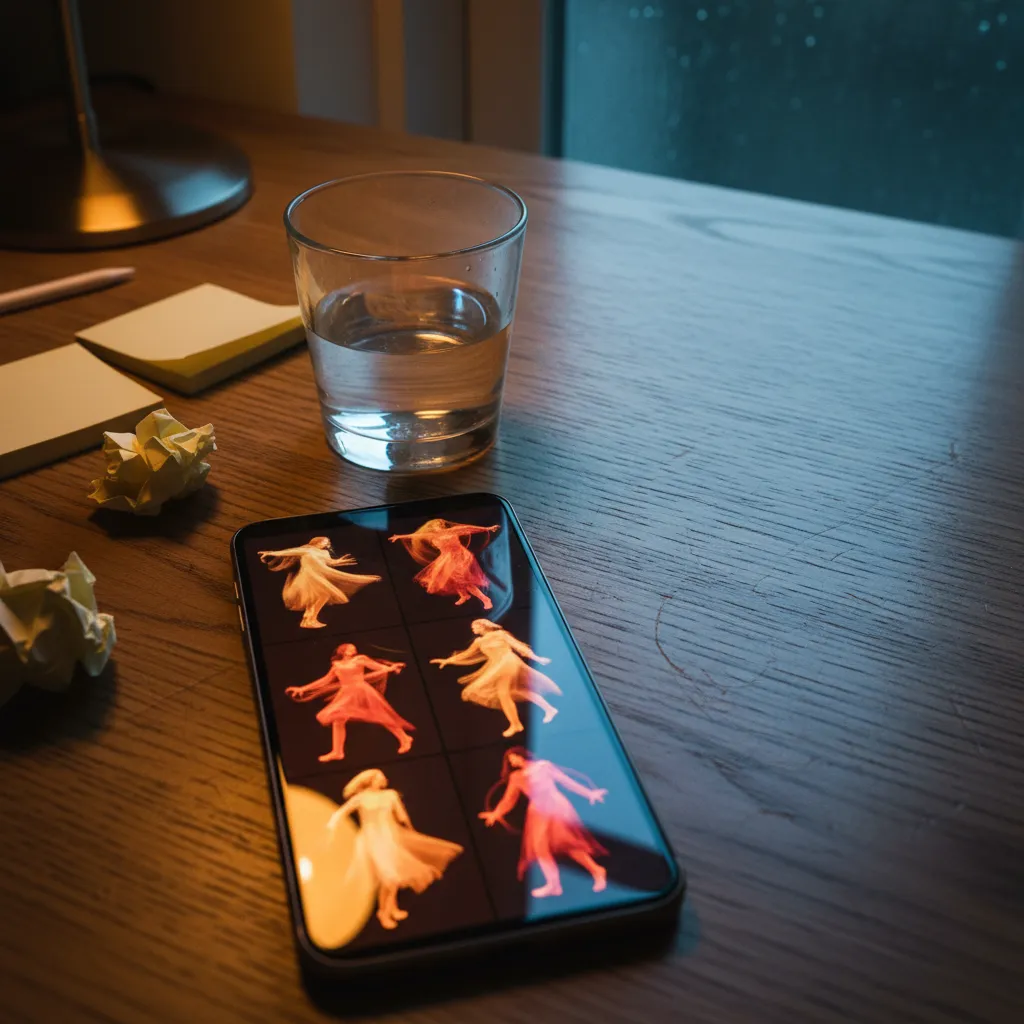
The sway dance effect does something fundamentally different. It takes your single selfie — one frame, no motion, no video — and generates a full rhythmic dance sequence where your image moves to music. Not a gif. Not a simple loop. A genuine, flowing animation where fabric sways, hair shifts, and the body follows a beat.
That distinction matters. Static images get saved. Motion gets shared.
Why This Trend Has Genuine Staying Power
Think about the friction involved in making a dancing video. You need decent lighting, a clear space, some confidence, and a willingness to actually perform on camera. Most people quietly eliminate themselves from that process before they even start.
The photo-to-dance animation AI trend removes every one of those barriers. You already have a selfie. You probably have a good one sitting in your camera roll right now. That's the only raw material required.
That accessibility is exactly why the AI dancing photo filter 2026 trend keeps growing. It's not gatekept by skill or equipment. It's gatekept by knowing which tools produce real results — and that's precisely where most people are still figuring things out.
The Best Tools for Creating a Sway Dance Video From a Selfie
Not all tools produce the same output. Some generate stiff, mechanical movement. Others produce something that looks genuinely alive. Here's the honest breakdown of what's actually worth your time.
Kling AI — The Gold Standard for Realism
If you've seen a sway dance video that made you stop mid-scroll, there's a strong chance it was made with Kling AI. The Kling AI dance effect uses advanced motion synthesis to map realistic body movement onto your photo, accounting for clothing physics, hair behavior, and natural weight transfer.
The results aren't just technically impressive — they're aesthetically convincing. The sway doesn't look programmed. It looks felt. That difference is visible in the final video, and it's the reason Kling consistently produces the most shareable outputs in this format.
The workflow is straightforward: upload your photo, select a motion preset or describe the movement you want, and let the model render. Quality outputs typically take two to four minutes. For anyone serious about making photo dance content on TikTok, this is the tool to learn first.
CapCut — The Fastest Entry Point
CapCut's sway dance tutorial pipeline is the most beginner-friendly of the major options. The platform has built-in AI animation effects that can process a selfie into a dance video without requiring external accounts or technical knowledge.
The trade-off is ceiling, not floor. For a first attempt at the AI sway dance effect, CapCut is excellent. For the hyper-realistic results that generate 300K+ engagements, you'll eventually feel the limits. But as a starting point — or for rapid, casual content — it delivers fast results with minimal friction.
CapCut also has a direct export pipeline to TikTok, which removes one more step between creation and posting. That speed matters when a trend is moving fast.
Viggle — Motion-First Thinking
Viggle approaches the photo-to-dance animation AI challenge differently. Rather than inferring motion from a still, it lets you select an existing dance reference clip and transfer that choreography onto your photo. You're essentially borrowing movement from a source video and applying it to your selfie.
This gives you intentional control over the style of movement. Want a specific trending TikTok dance mapped to your photo? Viggle makes that relatively direct. The output quality depends on how well your source photo aligns with the reference motion, but when the match is right, results can be stunning.
Filmora — For Creators Who Want More Control
Filmora sits in an interesting middle space — more powerful than CapCut for post-processing, more accessible than full production tools. Its AI motion features let you refine animation outputs, adjust timing, and layer music with more precision than most mobile-first apps allow.
For creators who want to go beyond a single-click preset — adjusting sway speed, loop points, or layering visual effects on top of the animation — Filmora offers that flexibility without a steep learning curve. It's the right tool when the raw AI output is close, but not quite there.
The Photos That Work — and the Ones That Don't
Here's what most tutorials skip over entirely: the photo you choose does the majority of the heavy lifting. The AI can only work with what you give it.
What Makes a Photo Sway-Dance-Ready
Clear subject separation from the background is the single most important factor. When the model can't cleanly identify where you end and the background begins, movement bleeds and visual artifacts appear. A solid-color background — or a softly blurred one — dramatically improves output quality across every tool.
Front-facing, straight-on poses animate more naturally than sharp angles. The model needs to understand body orientation to generate believable movement. Profile shots or extreme angles provide less structural information, and the output usually reflects that gap.
Lighting matters more than most people expect. Flat, even light produces cleaner motion. Harsh shadows across the face or body generate strange artifacts during animation, especially along edges. Natural window light, facing outward, remains the reliable standard for selfie-to-dance animation AI content.
What to Avoid
Heavily filtered or blurred selfies reduce the edge definition the AI relies on. Over-processed photos — aggressive grain, HDR effects, heavy smoothing — confuse the model and tend to produce exactly the stiff, uncanny movement that kills an otherwise good attempt.
Group shots rarely work well. The AI is calibrated for single-subject animation, and multiple people in frame cause the motion to distribute awkwardly or collapse into noise.
How to Avoid the Stiff Robot Look
This is the failure mode that plagues most first attempts. The image moves — technically. But it looks mechanical. The sway is too uniform. The limbs swing like pendulums rather than like a person who actually feels the music.
There are a few reliable ways to avoid it.
Choose a photo with natural asymmetry. A slightly tilted head, one shoulder forward, an arm at a natural angle — these give the model points of variation to animate through. A perfectly symmetrical, rigid pose gives the AI nothing except a straight axis, and straight axes produce robot-dancing.
Match your motion style to your clothing. Flowy fabrics animate beautifully because the physics are soft and forgiving. Stiff, fitted clothing leaves little visual evidence of motion, which flattens the result. A loose top, a dress, or anything with natural fabric movement gives the AI rich material to generate from. If the goal is a convincing sway dance video from your selfie, wardrobe choice is half the battle.
Don't skip the music sync step. In Kling AI, CapCut, and Filmora, you can align the animation rhythm to a specific audio track. When motion is synced to the beat, the brain reads it as intentional and organic. When it's even slightly out of phase, it registers as artificial. Take the extra minute to align the timing. It changes how the entire video is perceived.
Iterate before you post. The first render is rarely the best render. Different motion presets produce dramatically different results on the same photo. Try two or three variations before committing to a final output. Most tools let you run multiple renders without significant time or credit cost.
Making It Shareable, Not Just Good
There's a difference between a technically impressive animation and a video that gets saved and reshared. The AI sway dance filter content that goes viral has one consistent structural trait: it feels like a reveal.
The most effective format flashes the original still photo for one or two seconds before the animation begins. That before-and-after structure gives the viewer something to be amazed by. Without it, you're posting a dance video. With it, you're posting a transformation — and transformations are what people send to friends at midnight.
At PixViva, the underlying principle has always been the same: AI-generated content should feel like an authentic expression of a real person, not a synthetic product that happens to resemble them. The sway dance trend is a natural extension of that. When done well, the video doesn't feel like AI made something. It feels like AI revealed something that was already there.
Your Next Move
The barrier here is genuinely low. A well-lit selfie, five minutes with Kling AI or CapCut, and you have something that's currently generating hundreds of thousands of engagements for creators who found this workflow early.
The tools are getting better every month. The trend is not slowing. And the people who understand which photos to use, which tools to trust, and how to sidestep the stiff robot output — those are the creators who will be setting the template everyone else follows six months from now.
You already have the selfie. The rest is just knowing what to do with it.
Ready to see yourself in a new light?